

POET Order Modifications Demo
“To modify a customer's order, you are going to start from the customer's account page. So here I am with Justin Time, on his account and I am going to click into the order that we want to modify. And from here you are on the order page, you can see the breakdown of container details, additional information, and you can view the order as you did in the quote,” said Hannah Eibner.
“From here, I am going to modify the order. So there's two ways for me to start an order modification. First one would be to click this modify order button.”
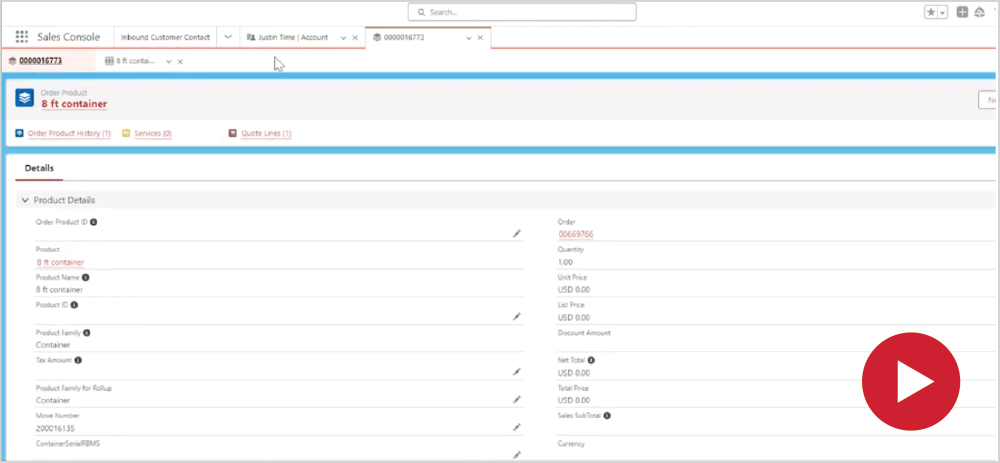
“Or, I can make a edit to the individual container. So, if I want to add a lock to this eight-foot container I'm going to go and click into here and edit the container. It will then ask me what modification I would like to do, and I'm going to add an ancillary item and click select.”
“And as it loads you can see the container details, it's an eight-foot container. And I would like to add an item if there were items on this container that the customer no longer wants, you would use that remove item button. But here we're going to add an item and I'm going to add it to its initial delivery.”
“Because that is when the customer will need the lock and I will select that service. And then I'm going to search for an item, so I am going to search for a lock. And I'm going to add the disc lock.”
“And I'm going to add one and add the item. So that I can see the price for it. And I will save this item to the quote.”
“If I need to add more additional items, I can click that add item and do the same process. Or, if I wanted to remove that item, I can then click the check box and hit remove item. But from here we're going to just save it to the quote.”
“I'm going to confirm the modifications to the order. And you can see that I get the order confirmation. The changes have been applied to my order and the status shows is booked.”
“Then I can close out. And you'll be able to see this foot container item on the order. If I go back to the customer's account and on the order, you can see it in the quote line.”
“So as you can see here, we’ll view all of the quote line items. And that disc lock has been added to the container. And that's how you add an additional item to a customer's order.”
“Now we are going to be demoing how to make a modification to a service state on an existing order. So I'm going to go in and click on an existing order for Justin Time from the customer's account page. And I'm going to start by clicking the Modify order button at the top.”
“You also could launch this from the container itself, but I'm going to start from the modify order button, and I'm going to modify a container journey. I'm then going to select next and I'm going to start a new modification. That continue with existing modification is if you have previously started a modification for a customer and saved it, you can continue working on that modification or you can create a new modification.”
“So I am going to modify my eight-foot container and I'm going to click next. I am then brought into this Modify Container journey page where you can see here all of the different service flags that we have. So I am going to start by changing my initial delivery date.”
“So you can see here my service date is currently ten two and there's no timestamp. If there was a timestamp then I would not be able to change that service. And so you go to action and I'm going to schedule a service date that will then bring me down into the availability calendar.”
“So you can see I'm currently scheduled for October 2nd, and I want to move to October 8th. So I'm going to click into that. And then you can see selected date and all of the information about all of the different dates.”
“So then you will click this checkbox Confirm Date selection in order to actually make that change. Which then you can see up here is reflected in that service date. Additionally, if the customer wanted to change that service date, and then they also wanted to add a service date, for their next leg, you could do that as well.”
“Same way that you go into the service date. And then, since we scheduled date, obviously you would have to schedule after that. And so I'm going to click the 15th again.”
“You can see all of the information, confirm the date selection and it will have applied that for you up here. Then you're going to click save. And I will confirm that modification to the order.”
“Or you could save it for later which again would bring up that initial side that you saw where it asks if I wanted to continue with a modification or start a new one. So that is for the customer to be able to think if they want to accept that change, especially in the case of price changes, they can have some time to decide if they want to do that or not.”
“Or you could perform a modification so you could change the drivers notes. You could add an additional item such as a locker blanket and continue working through different modifications. The customer might also need or you can confirm the modifications to the order.”
“So I'm going to confirm the modifications to the order. And you can see that the status changes to book and that they have been applied to the order. I will close out of that.”
“It will refresh my page. And then you can see here that the date has updated, to October 8th. And then you can also see that that return filled container to storage center has also been scheduled for the 15th.”
“And that is how you add and change service dates to an order via an order modification to modify drivers notes. When a customer calls back in and has to make a change, you can launch either from the modify order button or from the container that you need to change the drivers notice. So I'm going to edit the container.”
“And be provided the list of modifications that I could complete. So from here I'm going to click Modify Drivers now. And hit select okay.”
“I will then be asked to select the address that I want to modify. So this one only has an initial delivery address, so I'm only able to change that. And I'll edit the selected address.”
“And as you can see here I have the drivers notes that were previously provided. So we have Main and third Street and is not located within a gated community. And then maybe they realize that they no longer can, place it, put one to the left and one to the right.”
“I am going to then just place both of them to the right. Maybe we want to orient differently, and you can make any of the changes that you need to. On the drivers note and save the drivers notes.”
“Then you can change the order. And you'll be able to see the status change to box. And when you close out, your page will refresh.”
“You'll be brought to your 16ft container that you just added. You could move back to the customer account, and be brought back to their order. And then you can see down here we have the modification that's confirmed of changing the drivers now, and that is how you would go in and edit drivers set.”
 TEST POPUP