

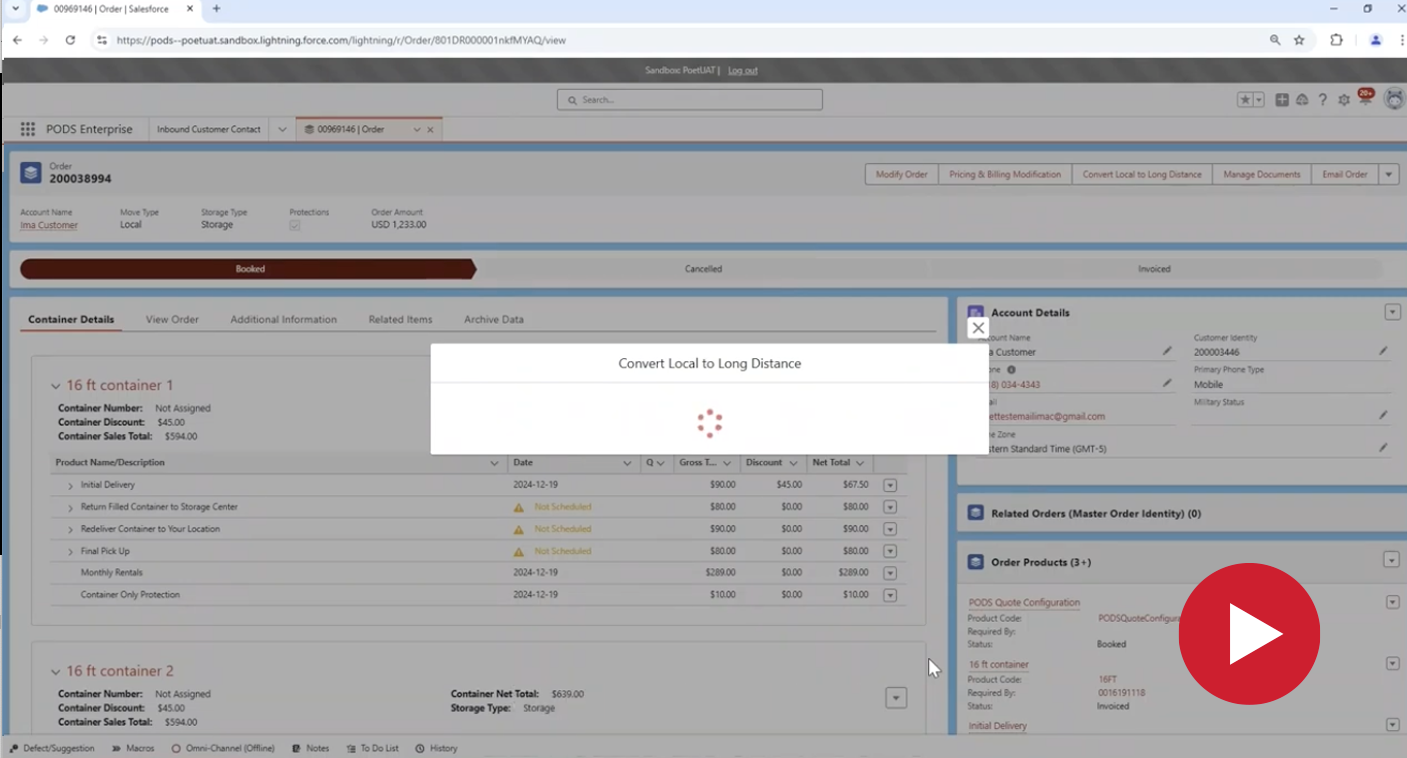
POET Local to Long Distance Conversion — One Local, One Long Distance Container Demo
“To convert a customer's order from local to long distance, but in the case that they want to keep one container local and have one go long distance, I'm going to start on the customer's order page and then I'm going to click the button “convert local to long distance.” In here I can see both my 16-foot containers and the time stamping for my initial delivery, so I'm going to go ahead and initiate the conversion. So what you can see is some order information at the top and then I can see the containers for conversion,” said Hannah Eibner.
“So in this case, they want one of their containers to stay local. So I went and unchecked this container, but they want one container to go long distance. So I'm going to have my second 16-foot container convert from local to long distance and keep my first 16-foot container local.”
“So I'm going to provide a new delivery address in Chicago. And select my delivery type, which is going to be standard in this case. And so that is what the second 16-foot container is going to go to that new delivery address.”
“And then you can see here I have my container and it's going to show me my new return filled container, storage center, long distance transit, redelivery, monthly rentals, FPU. So from here, once I've added that address and delivery type, I'm going to click save. Now that one 16-foot container at the top is going to stay on the original order and I'm going to create a new order for that second 16-foot container that is going to be converting from local to long distance.”
“So as you can see here, I have a change summary which shows me the price before and the price after. And then you can see here I have a net new quote. So this quote is going to be my original quote for that 16-foot container that is staying local in Peoria.”
“And then I have a new quote that I can use to show the customers. So I'm going to go ahead and update the original order. And then it's going to show me that original order that has been saved.”
“And then I have this new quote for my new address in Chicago for that second 16-foot container. And I'm going to have to go through the process of converting this to an order so that we have two orders, one for the container that is staying local and the new one for the container that is going long distance. So I'm going to go through the same process I do when converting an original quote to an order, which is acknowledging and the customer contact information and their billing address.”
“I then am going to have to go through the placement permit and driver's notes and review these with the customer and then input the placement information. Save that address information. I can see the rental agreement and provide payment information, and in this case I'm in the training environment, so I'm going to override, but you could select the credit card that they have on file and then you'll have the full summary of this order and we'll convert it to an order.”
“Then you can see here I have the hyperlinked new order and I have the required disclosure. I can then proceed and you can see that I can go I have converted my new quote into an order and I can go back to my original order. So when I refresh this page.”
“You'll see here that my 16-foot container at the top that I was leaving, it stayed the same and then I have my second 16-foot container that is going to keep my initial delivery and the COO because this initial delivery has already occurred. Then I can see here I have a hyperlinked additional order that if I click into it, you can see this is now my long distance order.”
“And you can see I have all of those new lines for my new order and they are linked together. So you can see I have one order where that container is remaining local and then one order where it is going long distance. And that is how you would convert an order to keep one container local and convert one to long distance.”
 TEST POPUP