

POET Order Modifications Demo Part 2
“To cancel either a container on an order or the entire order itself, you can launch from either the container that you want to cancel or from this Modify order button in the upper right-hand corner. Once I click Modify order, I'm going to be given the list of all the modifications I can complete and I'm going to click Cancel Order or Container. Because I launched from the Modify Order button, it's going to default to cancelling the entire order, which I can leave as is,” said Hannah Eibner.
“If the customer wants to cancel their entire order or if they want to just cancel a specific container, I can select Cancel a specific container. If you want to cancel a specific container, select the container that you would like to cancel. Then you'll have to show if it was requested by PODS or the customer and then a cancellation reason.”
“So in this case, personal circumstances changed, they no longer needed that eight-foot container. Then you'll click next, and it'll show that you've successfully cancelled the container on your quote and you can proceed to apply it to the order. And then you'll be shown that they have been successfully saved and then you can either save it for later, so let the customer know the price difference, perform more modifications, or confirm the modification to the order.”
“Then you'll get shown that the requested changes have been applied to the order and it'll show that status is booked. And then you can click close and that eight-foot container no longer shows on the order. It's a similar process to cancel the entire order.”
“So go back into Modify Cancel Order or Container and click select. This time when we go into cancellation, type because there's only one container on this order. By cancelling the container, it's also cancelling the entire order and you'll fill out the same details of what it was requested by and then what the reason is for the cancellation, and then you'll click next.”
“And it'll tell you that you've successfully cancelled them on a quote and you can proceed to apply to an order, see a summary of the changes, and then you can see that that status would change to cancelled again. Save for later if you are not ready to complete it, perform more modifications like adding a cancellation fee or confirm it to the order. From there, you'll get that confirmation that the changes have been applied.”
“The order ID and then the status will show Updated to cancelled and then you can click close and when it reloads it'll show the status as cancelled and then no more containers will show. You can see the history of the modifications of cancelling the container and cancelling the order in the Modifications tab, and that is how you cancel either a container or the entire order for a customer.”
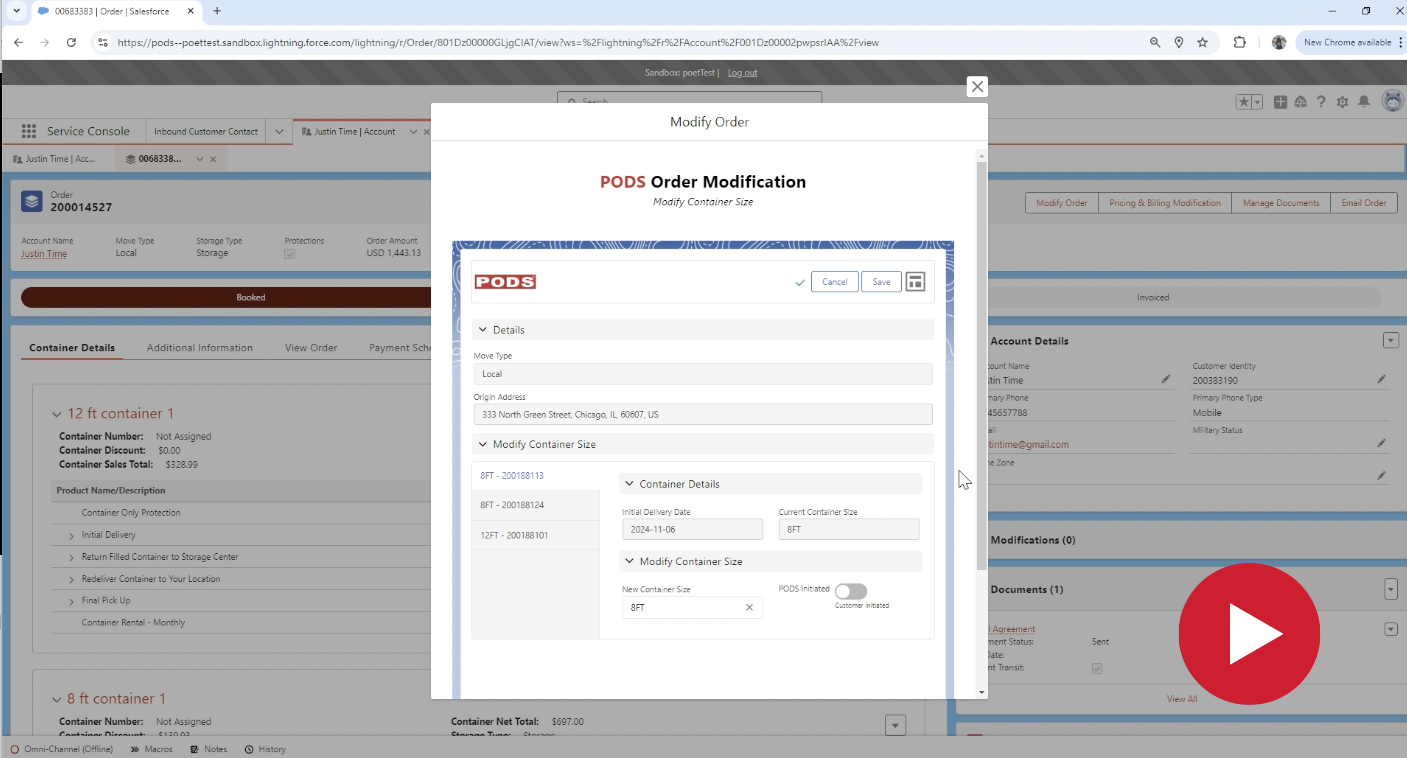
“To modify a container size, you are going to start on the Orders page and you're going to click Modify Order. From here, you're going to select the modification and you're going to click Modify Container Size, then hit Select. The page with all of your containers will load and you can see the different containers here and you'll be able to make the modification that you need.”
“So, if I needed to update one of these eight-foot containers into a 12-foot container, I'm going to go ahead and click 12-foot container and confirm the container size choice. It will show me that this container is available and I'll go ahead and I will click save. It has been updated and then I will click next and a differential table will show me what I had before and what I had after.”
“You will then confirm the modifications to the order. And receive confirmation of those changes and click close. The page will then refresh for you and you'll now be able to see that second 12-foot container that's been added to your order, and that is how you modify a container size.”
 TEST POPUP